Turn Gmail attachments into answers with your AI assistant
Put your Gmail attachments to work through MCP. Find documents, extract text and fields from them, check exact duplicates, compare selected files, and prepare a spreadsheet with the originals. Keep source references alongside the results.
Sign in to Dioveo with Gmail, then approve access for your assistant. Review workflow drafts in Dioveo before activating them.
 Claude
- Claude Code
- ChatGPT
- Codex
- Cursor
Claude  Dioveo
See it with your AI assistant
Pressing play loads the video from YouTube (Google).
Capabilities
What your assistant can do
Find the right files, check the source, and leave with a useful export or a workflow draft to review.
Walkthrough: analyze Gmail PDF attachments with ClaudeFind the document you remember
Search by sender, filename, subject, and date. On Pro, describe what you remember and semantic search finds documents whose text Dioveo has already extracted.
searchExtract the fields you need
Request fields from supported PDFs, scans, images, and office files. Results include source excerpts and page references so you can check missing or uncertain values.
extract_fieldsPrepare a handoff with the originals
Keep a selected collection, review extracted details, and prepare a CSV or Excel export with source references. Retrieve original files with separate download permission.
export_collectionSeparate repeats from revisions
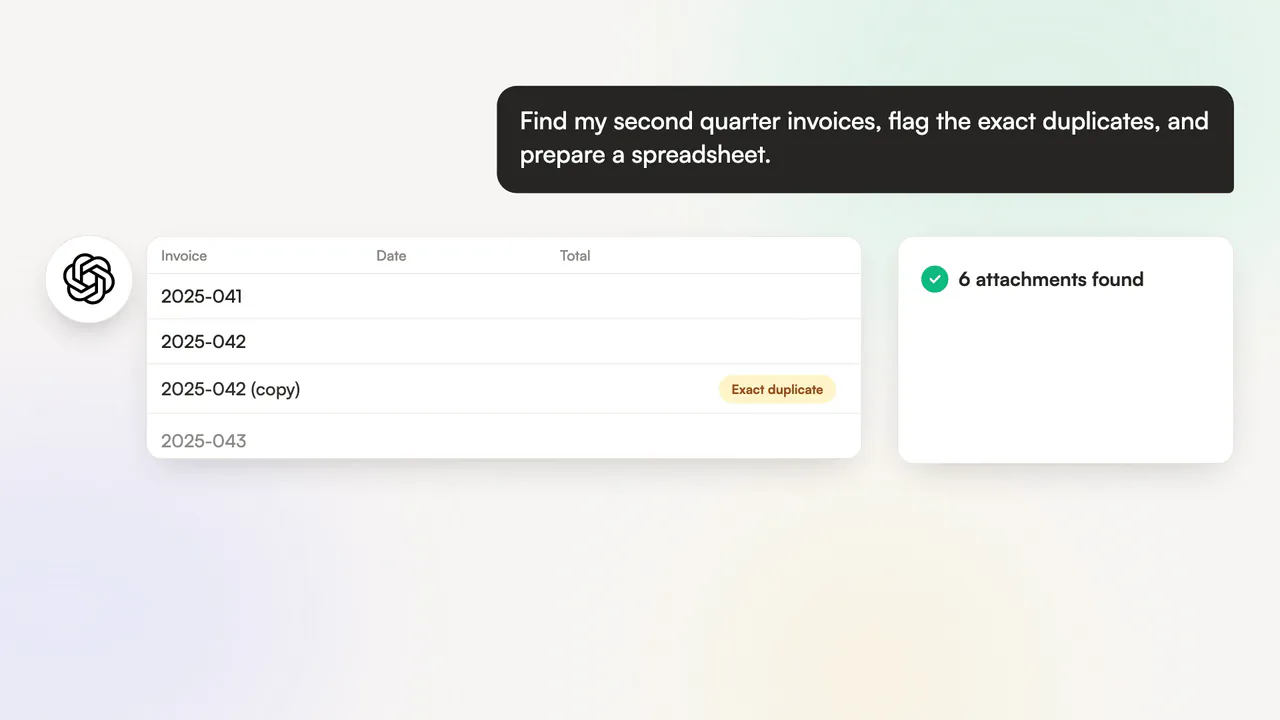
Identify exact duplicate files in a collection, even when names differ. Compare extracted fields in selected documents with both sources and uncertain values visible.
compare_documentsDraft an automation by describing it
Say what should happen to future attachments. The draft lands in Dioveo for you to review, adjust and activate.
create_workflowYou stay in control
An assistant you connect asks for your approval on a Dioveo screen that lists the permissions it requests. In document text and extracted fields, recognized sensitive values are masked by default, and access can be revoked.
Setup
Connect it, step by step
Dioveo's server URL is the one thing to paste where your assistant asks for a connector or MCP server. Then you sign in to Dioveo and approve the access on its own screen.
Claude
Web, desktop and mobile
- 1In Claude, open Customize, then Connectors. Click “+ Add”, then “Add custom connector”.
- 2Name it Dioveo, paste https://server.dioveo.com/mcp as the server URL, and click Continue.
- 3Check the detected sign-in settings and click Continue. Choose “Sign in now”, set the OAuth client to “Register automatically”, and click Add.
- 4Sign in to Dioveo if asked, check the permissions on the Dioveo screen, and click Connect.
- 5In a chat, click the plus button at the lower left, choose Connectors, and turn Dioveo on.
Confirm it worked. Ask Claude to check your Dioveo connection. It should call Dioveo and tell you it is connected and which permissions you approved.
Connectors added on the web also work in Claude desktop and mobile.
Steps checked November 2026 against Claude's guide. Menus can move, so follow that guide if a label differs. More about Claude
Server URL
https://server.dioveo.com/mcpUsing another assistant? If it accepts a remote MCP server URL with OAuth sign-in, the same URL works.
What to try first
Once Dioveo is connected, paste these one at a time. Change the dates to fit your mailbox.
- 1. Check the connection“Use Dioveo to check my connection and tell me which permissions I approved.”
What you should get
A short summary: Dioveo is connected, which permissions you approved, whether your mailbox index is ready, and, if you approved search or text extraction, how many new documents you can still process this month.
- 2. Find attachments“Search my Dioveo attachments for PDF files from the last 30 days. List the sender, subject, file name and date for each one.”
What you should get
A list of matching attachments with sender, subject, file name and date. Search uses attachment details only, so the rows carry no email text or preview. If your index is still building, the answer says its coverage is partial.
- 3. Pull fields from a few files“From those results, take the invoices and extract the invoice number, date, currency and total from each. Show the source quote and page for each value and flag anything uncertain.”
What you should get
One row per file with the fields you named, each with a quote from the document and its page. Missing or uncertain values are flagged for you to check. Bank details and similar values are masked by default. Processing can take a moment, so the assistant may check again before it answers.
- 4. Draft an automation“Draft a Dioveo workflow that saves future invoice attachments to my Google Drive. Let me review it in Dioveo before anything runs.”
What you should get
The assistant checks Dioveo’s workflow catalog, creates a draft, and tells you it is ready. Nothing runs until you open Dioveo, review the draft and activate it yourself. This needs the “Create workflow drafts” permission, which is off by default on the approval screen.
If it doesn't work
Dioveo shows “Request not accepted”
The app that started the connection sent a request Dioveo cannot accept. Go back to your AI app and start the connection again. If it repeats, remove the connector, check that the server URL matches the one on this page, and add it again.
Dioveo shows “Unknown AI app”
Dioveo does not recognize the app that started the connection, or cannot verify where it will return you, so it stopped. The app’s registration may have expired. Start the connection again from the app. If it repeats, remove Dioveo from the app and add it again.
The assistant says it needs another permission
Dioveo grants only the permissions you turn on. On the approval screen, search and text extraction start on. Workflow drafts, original-file downloads and cloud uploads start off. To add one, remove Dioveo from the assistant, revoke that assistant under Connections in Dioveo, add the server again, and turn the permission on.
The assistant reports a monthly limit
Each new document Dioveo processes counts toward a monthly limit: 30 on Free and 500 on Pro. Text Dioveo already has, and the same request repeated, do not count again. The limit resets each month. Semantic search needs Pro. Original-file downloads and cloud uploads count toward your own download and file-transfer limits. The pricing page lists the plans.
The assistant says the mailbox needs reconnecting
Dioveo has lost access to the mailbox, and asking again will not help. Sign in to Dioveo again to reconnect Gmail.
The Dioveo MCP server works with Gmail mailboxes. See the full list
Safeguards
What it can and cannot do
The limits are the point. Each one holds whether you ask from Claude, ChatGPT, or another assistant.
- You approve the connectionEach assistant is approved once, on a Dioveo screen that names it and lists what it asked for. Dioveo does not give it your Google credentials.
- Never sends email from your GmailDioveo never sends or drafts email from your Gmail account. It only changes your mailbox when you ask it to: applying labels, archiving or marking mail as read in automations you turn on, creating Gmail filters for automations you set up, or moving emails you select to Gmail Trash after you confirm. Creating a workflow that saves to a cloud drive, or turning on cloud sync for a rule folder, adds a Gmail filter and the label Workflow/<name> to your mailbox, and by default a Processed label on the mail it handled, unless you switch that off.
- Sensitive values are masked in document textIn document text and extracted fields, recognized bank details, identification numbers and similar values are masked by default. Releasing them takes an explicit confirmation that Dioveo records without copying the values into its audit log. Search results and original files are not masked.
- Document text stays in your cacheText Dioveo extracts from a document is kept for 12 months unless you set a shorter period. Today you set or clear it through a connected assistant, or by deleting your account. Extracted field values are kept until you delete your account.
- Automations wait for youAutomations arrive as drafts in Dioveo. Nothing runs until you review and activate it.
Included in your plan
Attachment metadata search is included on Free and Pro. Semantic search is a Pro feature for documents whose text Dioveo has already extracted, with monthly limits on documents and searches. The first time Dioveo processes a document's text counts as one AI document: 30 on Free and 500 on Pro each month. Spreadsheet extraction has its own monthly limit. Identical requests are cached, and a failed attempt is usually not counted.
Compare plansPrompts
Things to ask once it is connected
Choose a prompt and adapt the dates, senders, and selection to your Gmail. Semantic search requires Pro and works on documents whose text Dioveo has already extracted. Review uncertain fields before using them.
- “Find invoice attachments received from 1 April to 30 June 2026. Let me review the selection, put the selected files in a collection, flag exact duplicates and uncertain fields, and prepare an Excel export plus the originals.”
- “Search my extracted, indexed attachments for the document about replacing a laptop battery that arrived between March and May 2026. Show me the relevant passage and who sent it. Tell me if any attachments in that period are not indexed.”
- “Check my selected collection for exact duplicate files. Compare the original invoice with the revised one, show changed extracted fields with both sources, and flag anything uncertain. Keep all originals.”
- “Compare these two supplier quotes for price, currency, delivery date, and payment terms. Cite both documents and flag anything you cannot verify.”
- “Collect my attached EV charging invoices for August 2026. Extract provider, date, energy, total, and currency where supported by the source, then export a review sheet.”
- “Find the attached receipt for my washing machine bought in 2025. Show the purchase date and product details from the source, then retrieve the original.”
- “Find the attached hotel, rail, and rental receipts for my Lyon trip from 8 to 12 June 2026. Let me review the selection, then export the documents and a spreadsheet with source references.”
- “On Pro, search my indexed English, French, and Arabic invoice attachments for office equipment. Show the relevant source passages, preserve the original currency, and tell me about missing search coverage.”
- “Draft a workflow that saves future invoices from billing@acme.com to my chosen Google Drive, OneDrive, or Dropbox folder. Let me review and activate it in Dioveo.”
FAQ
Frequently asked questions
Which assistants work with Dioveo?
Is it included in my plan?
Can an assistant change, send or delete my email?
What happens to sensitive information?
What is MCP?
How do I disconnect an assistant?
Does it work on my phone?
Your attachments, one question away
Create a free Dioveo account, let it index your mailbox, then connect the assistant you already use.
- You approve each assistant
- Saving a copy never removes mail
- Revoke access in Dioveo